
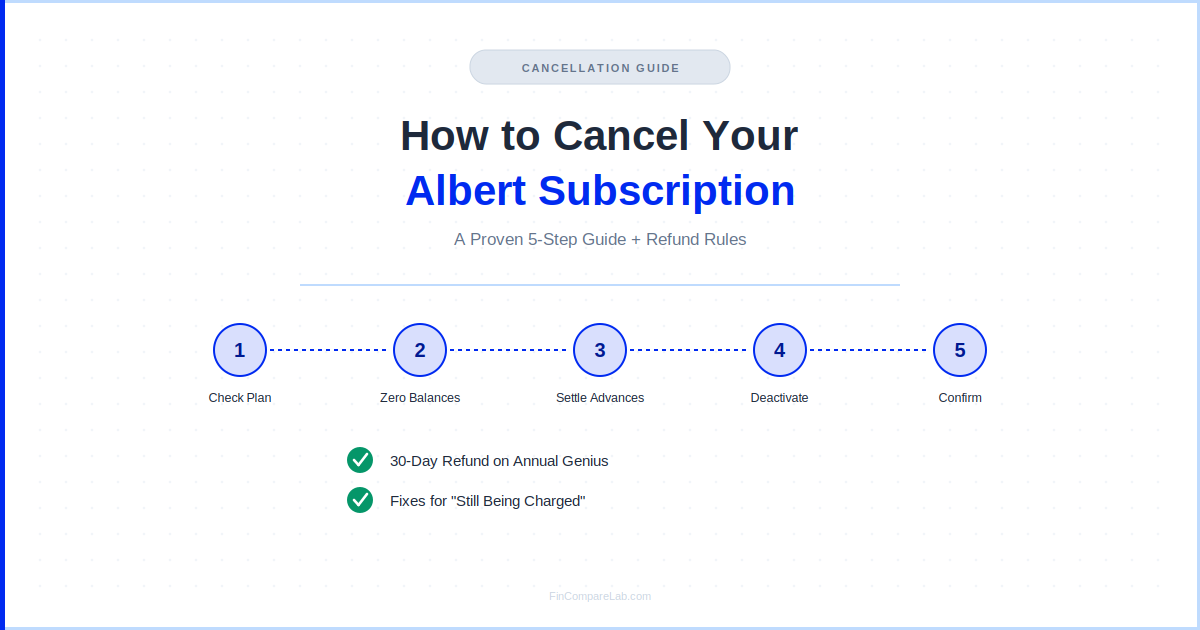
Figuring out how to cancel an Albert subscription trips people up not because the steps are hard, but because Albert splits cancellation into a few different actions depending on what you’re actually paying for. The short version: how to cancel Albert subscription comes down to one action — deactivating your account — even though Albert spreads the process across a few different screens.
⚡ Quick Answer
You cancel Albert subscription billing by deactivating your account — in the app under Profile → Menu → Payments → Help Center, or at albert.com/deactivate — after bringing your Albert Savings and Investing balances to $0. Monthly plans (Standard, Genius, Family) aren’t refunded once billed; annual Genius plans get a full refund within 30 days.
How We Review Apps · Pricing verified from help.albert.com — 6 August 2026
What Should I Do Before I Cancel My Albert Account?
A few minutes of prep before you start how to cancel Albert subscription steps saves you from losing records or getting caught off guard by a balance you forgot about.
Download or screenshot anything you’ll want later — transaction history, your current plan and pricing, and any statements tied to Savings or Investing. Once you’re deactivated and back on the free tier, some of that paid-tier history may not stay visible until you reactivate.
Check for anything scheduled to hit before you cancel. If you have an Instant advance due soon, or autopay set up on a loan balance, know that date before you start — deactivating doesn’t pause those payments, so it’s better to go in with the full picture than to be surprised by an automatic withdrawal mid-cancellation.
Finally, confirm which plan you’re actually paying for. It’s an easy detail to lose track of, and it changes which refund rule applies later in this guide — Standard, Genius, and Family are billed differently, and Genius is the only one with a meaningful refund window.
If you’re on a Family plan and you’re not the owner, you don’t need to go through deactivation at all — the owner can remove you from Profile → Family account, and you’ll be prompted to either start your own subscription or close your account at that point.
How Do I Cancel My Albert Subscription?
You cancel Albert subscription billing by deactivating your account, either in the app or at albert.com/deactivate, after your Albert Savings and Investing balances are at $0. Deactivation cancels billing immediately going forward, though any Instant advance or loan balance still needs to be repaid separately.
Albert doesn’t have a single “cancel” button sitting on its own — cancellation happens as a side effect of deactivating your account. That’s a little different from apps where you just tap “cancel plan” and you’re done, so it’s worth walking through in order.
If you found this guide by searching how to cancel Albert subscription or how to cancel Albert account, you’re in the right place — Albert doesn’t treat those as separate processes. The same five steps below apply whether you’re on Standard, Genius, or Family.
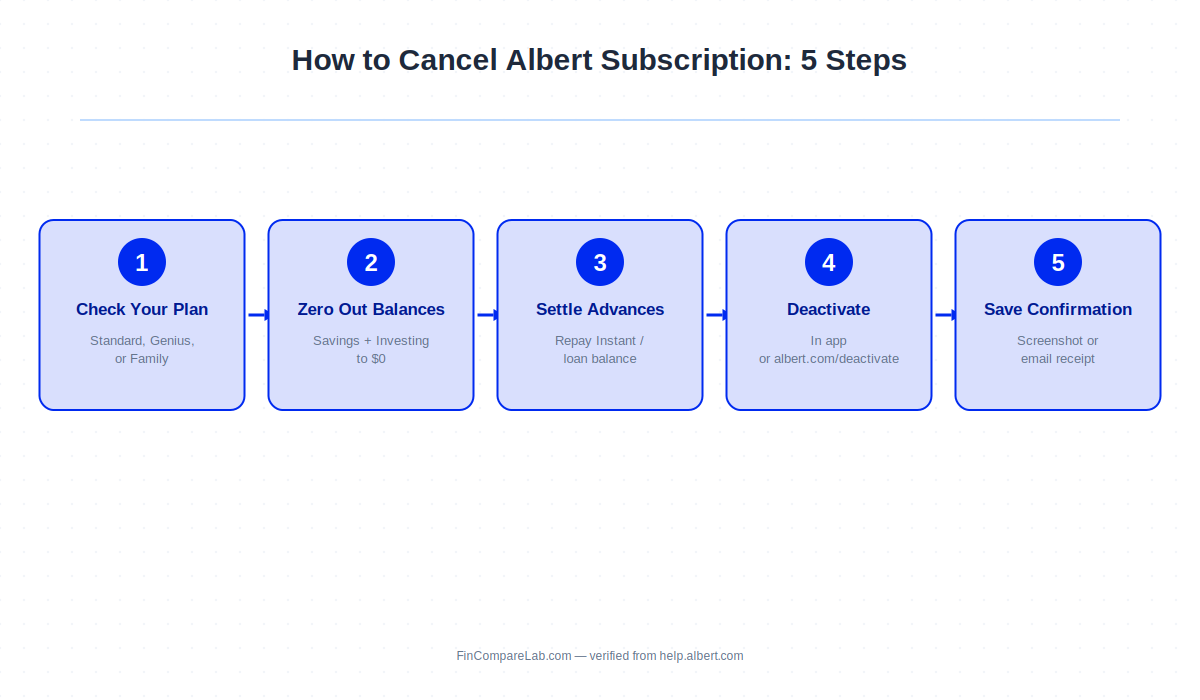
- Check which plan you’re actually on. Open Profile → Menu → Payments and confirm whether you’re on Standard ($19.99/mo), Genius ($39.99/mo), or Family ($39.99/mo, up to 4 members). This matters because the next few steps depend on which balances you’re carrying.
- Zero out your Albert Savings and Investing balances. Withdraw any Savings funds and sell or transfer out any Investing positions until both sit at $0. Albert won’t let deactivation complete while either balance is above zero.
- Settle any Instant advance or loan balance. Deactivating doesn’t erase what you owe on Albert Instant or any outstanding loan — you’ll still need to repay it, and autopay will keep pulling payments if it’s turned on.
- Deactivate through the app or browser. In the app, go to Profile → Menu → Payments → Help Center → Deactivate or close my accounts, and follow the prompts. Or do the same thing from a browser at albert.com/deactivate. If you subscribed through Apple or Google instead, skip to the App Store/Google Play steps below.
- Save your confirmation. Screenshot the confirmation screen or save the confirmation email. If a charge shows up later, this is what you’ll point to when you contact support or your bank.
Cancel at least three business days before your next billing date. Albert’s fee payments automatically renew until you deactivate, so waiting until the day of your renewal risks getting charged for one more cycle.
This is really what people mean when they ask how to deactivate Albert account or cancel Albert subscription before the next charge hits — timing the request a few days early is what actually prevents it, not any special setting inside the app.
What Happens to My Money When I Cancel?
Deactivating your Albert account stops future subscription billing, but it doesn’t touch money you already owe. Any Instant advance or loan balance stays your responsibility, and Albert keeps making automatic payments on it if you have autopay turned on. That’s really the heart of most how to cancel Albert account questions — not the button-tapping, but what happens to money already tied up in the app.
If you turn off autopay before deactivating, you’ll still owe the balance — you’ll just need to make manual payments instead of having them pulled automatically. Either way, an outstanding Instant advance doesn’t block deactivation itself; it just keeps accruing as a separate obligation after your subscription ends.
Your login itself stays active even after deactivation — Albert designs it this way so you can reactivate later without starting from scratch. You’ll keep access to whatever features aren’t part of the paid subscription, but Genius-only tools (like expert advice access) disappear once billing stops.
| Account item | What happens after you deactivate |
|---|---|
| Subscription billing | Stops going forward, effective on deactivation |
| Savings / Investing balances | Must already be $0 — deactivation won’t complete otherwise |
| Instant advance or loan balance | Still owed, autopay continues if enabled |
| Login / account access | Stays active, reactivation possible anytime |
Verified from help.albert.com — 6 August 2026.
Will I Get a Refund If I Cancel Albert?
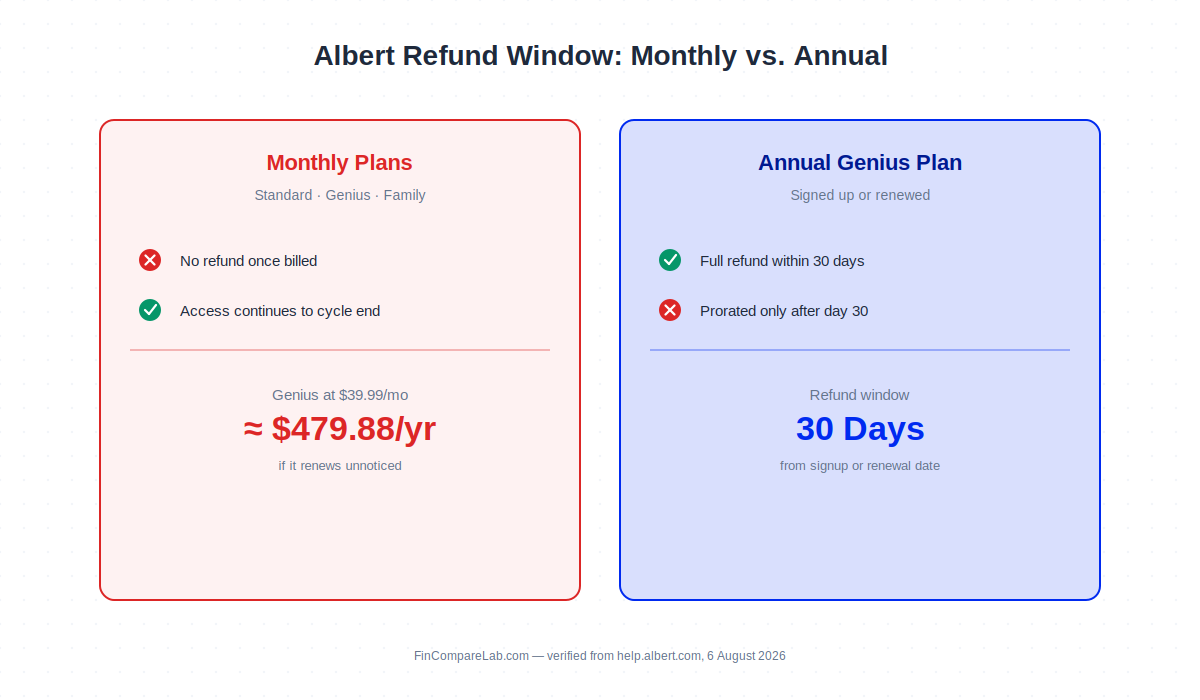
It depends on your plan and billing cycle. Monthly Standard, Genius, and Family subscriptions aren’t refunded once a billing cycle starts, but you keep access through the end of that cycle.
Annual Genius plans work differently — cancel within 30 days of signing up or renewing and you can get a full refund; after that window, refunds are typically prorated rather than full. At $39.99/mo, a Genius plan that quietly renews works out to roughly $479.88 for the year, which is exactly the kind of charge worth catching inside that 30-day window rather than after.
Whether you cancel Albert subscription billing on a monthly or annual plan changes which of these refund rules applies, so it’s worth confirming your billing cycle under Profile → Menu → Payments before you deactivate.
Pausing a feature like Smart Money doesn’t pause your subscription payment — the two are separate, and Albert continues billing your plan even while a feature is paused. If you’re trying to stop a charge, deactivation (or the App Store/Google Play cancellation route) is the only thing that actually stops billing.
Why Am I Still Being Charged After I Canceled Albert?
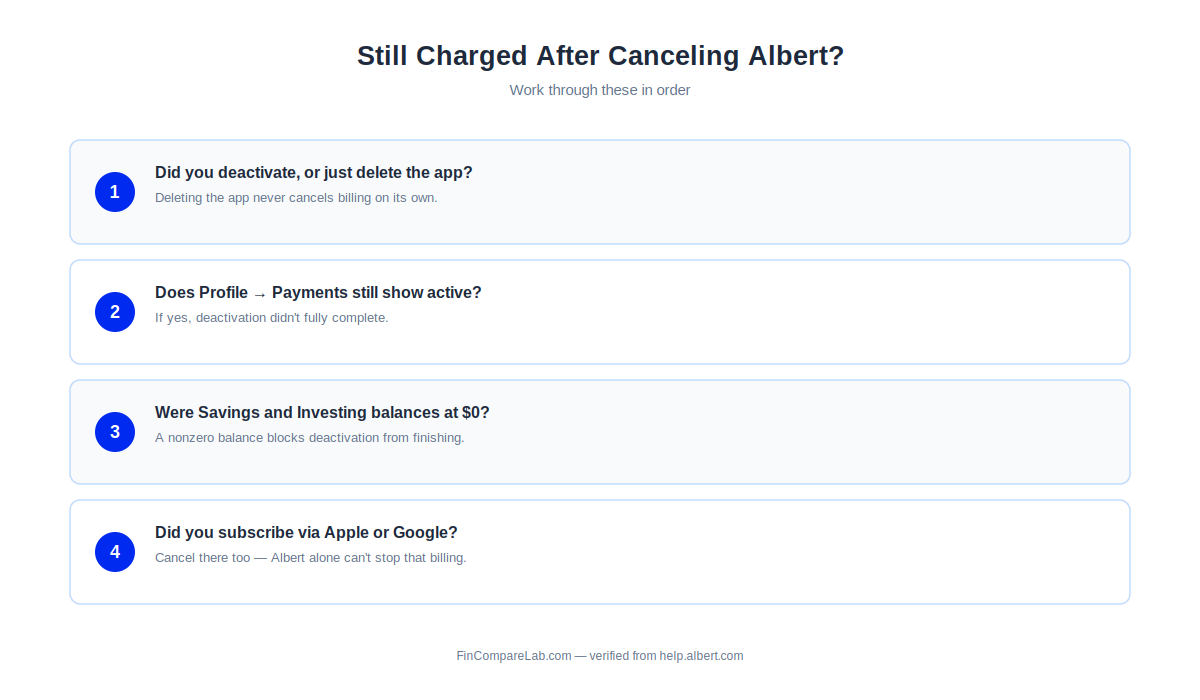
The most common reason is that deleting the app isn’t the same as deactivating your account. Uninstalling Albert from your phone doesn’t touch your subscription at all — Albert keeps billing until you actively deactivate or cancel through your app store.
Log back into Albert (reinstall if needed) and check your account status under Profile → Menu → Payments. If it still shows as active, the deactivation didn’t fully process — this sometimes happens if a balance wasn’t fully zeroed out, or if the confirmation step got interrupted.
This is exactly the scenario behind most how do I cancel my Albert subscription complaints online — people believe they’ve canceled, but a stuck balance or an interrupted confirmation step left the account active in the background.
Before you contact support or your bank, confirm what the charge actually says on your statement. Albert subscription charges typically appear as “ALBERT GENIUS,” “ALBERT.COM,” or sometimes just “ALBERT” followed by a short reference number — matching the exact wording and date makes it much easier for support or your bank to track down the specific charge you’re disputing.
If your account genuinely shows as deactivated and you’re still being charged, contact Albert through the in-app support chat (Profile → Menu → Payments → Help Center) with your confirmation screenshot and the charge date.
Different third-party guides list different support email addresses for Albert, but none of those appear on Albert’s own help center pages, so the in-app channel is the more reliable one to use. If that doesn’t resolve it, your bank or card issuer can dispute the charge and is required to investigate.
How Do I Cancel Albert Through the App Store or Google Play?
The steps above cover how to cancel Albert subscription billing when you signed up directly through albert.com. If you subscribed through Apple or Google instead, you cancel billing through that platform rather than inside the Albert app.
On iPhone: go to Settings → your name → Subscriptions, find Albert, and tap Cancel Subscription (Apple’s own subscription management guide covers this in more detail). On Android: open the Google Play Store, tap your profile photo, then Payments & subscriptions → Subscriptions, find Albert, and tap Cancel, following Google Play’s cancellation steps if anything looks different on your device.
Either route stops future billing, but neither one is what people usually mean by how to deactivate Albert account — that specific process, including zeroing out Savings, Investing, or Instant balances, still happens inside the Albert app itself.
If you’re locked out of the app entirely and can’t get to the deactivation menu, Albert’s help center also offers a virtual support chat you can reach without logging in, which can walk you through closing or deactivating an account you can’t otherwise access.
What’s the Difference Between Deactivating and Closing My Albert Account?
Deactivating cancels your subscription while keeping your login active, so you can come back and reactivate later without re-entering everything. Closing (or deleting) your account is meant to be permanent. Both are legitimate answers to how to cancel Albert account, but they’re not identical to how to deactivate Albert account specifically — deactivating is reversible, closing generally isn’t.
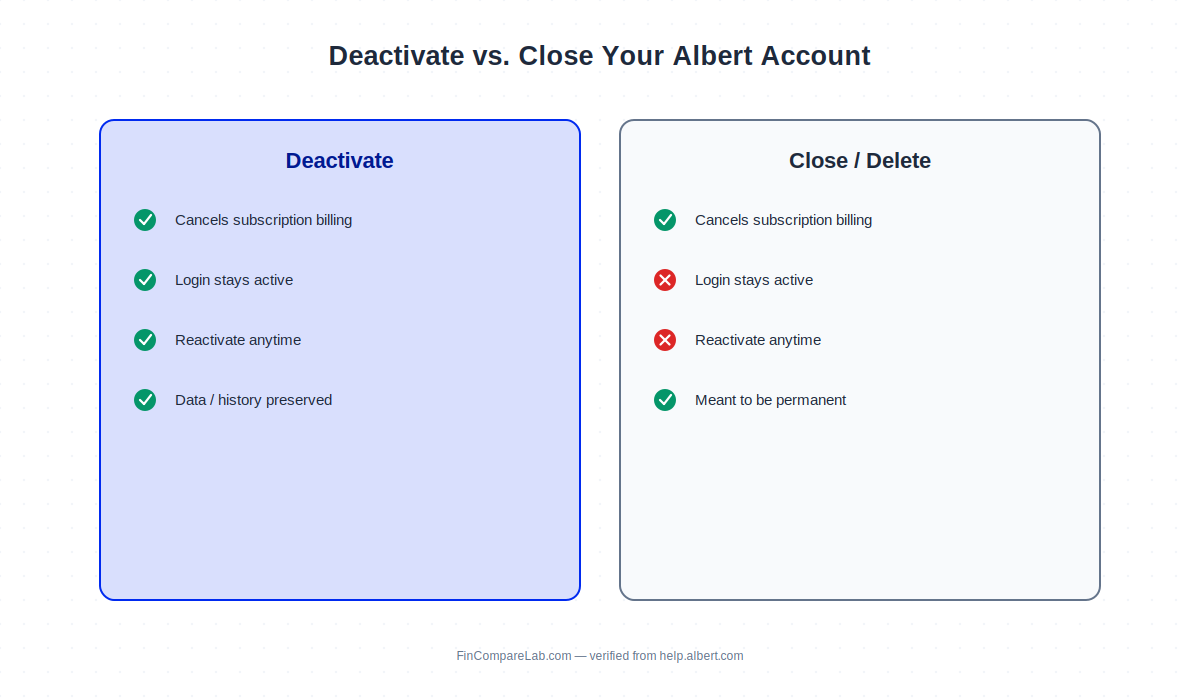
Both routes require the same prep work — Savings and Investing balances at $0, and Instant/loan balances accounted for. If your only goal is to cancel Albert subscription charges without losing your account history, deactivation gets you there without the permanence of closing. You can decide about full closure later without losing anything in the meantime.
What Should I Use Instead of Albert?
Once you’ve worked through how to cancel Albert subscription billing, the next question is usually what to use instead. What you switch to depends on why you’re leaving.
If it was the cost, my Albert alternatives roundup breaks down cheaper options by use case. If it was specifically about Instant advances or bill negotiation, Albert vs. Rocket Money and Albert vs. Cleo both cover apps with lower or no subscription fees for similar features.
If you’re still weighing whether to cancel at all, my full Albert review and Albert pricing breakdown lay out what you’d actually be giving up at each tier.
What Else Do People Ask About Canceling Albert?
Below are the specific how to cancel Albert subscription and how to deactivate Albert account questions that come up most, along with the ones about memberships, Genius, and family plans.
How to Cancel Albert Subscription: Is There a Faster Way?
The fastest route is the browser link, albert.com/deactivate, since it skips opening the app and navigating menus. It only works once your Savings and Investing balances are already at $0, so that prep step still comes first either way.
How to Cancel Albert Account: Is That the Same as Canceling the Subscription?
Yes — deactivating your Albert account is what cancels the subscription. Albert doesn’t treat “cancel my subscription” and “cancel my account” as two separate processes; deactivation is the single action that does both.
How to Deactivate Albert Account: What Happens to My Data?
Your login and account details stay in place after deactivation, which is what lets you reactivate later. You keep access to any Albert features that aren’t part of the paid subscription, but your transaction history and paid-tier data may not be visible again until you reactivate.
How Do I Cancel My Albert Genius Subscription Specifically?
Genius cancels the same way as any other Albert plan — deactivate through Profile → Menu → Payments → Help Center, or at albert.com/deactivate. There isn’t a separate “cancel Genius only” toggle that keeps Standard active; it’s the same how to cancel Albert account process, just applied to whichever plan tier you’re on.
How Do I Cancel My Albert Membership?
“Membership” and “subscription” mean the same thing here — whichever term you search, cancel Albert subscription and cancel Albert membership both route to the same deactivation flow, whether you’re on Standard, Genius, or Family.
How Do I Unsubscribe From Albert Completely?
Deactivation stops billing and unsubscribes you from the paid plan while keeping your login available. That’s a different goal from how do I cancel my Albert subscription for billing purposes alone — if you want to remove your data and account entirely, you’ll want full account closure instead, requested through the same Help Center menu.
How Do I Cancel an Albert Family Plan?
The plan owner cancels the same way — deactivate through Profile → Menu → Payments → Help Center. If you’re a family member (not the owner) and just want to leave the plan, the owner can remove you from Profile → Family account, and you’ll then be prompted to start your own subscription or close your account.
Does Pausing Smart Money Cancel My Albert Subscription?
No. Pausing a feature like Smart Money doesn’t stop your subscription billing — those are separate systems, and Albert keeps charging your plan even while a feature is paused. Deactivation is the only thing that actually stops the charge.
Can I Reactivate My Albert Account After I Cancel?
Yes. Deactivating keeps your login active specifically so you can reactivate later without starting over. You’ll still need to go through Albert’s normal sign-in and subscription flow again, since reactivation restarts your billing rather than resuming exactly where you left off.
What If I Can’t Log Into the Albert App to Cancel?
You don’t need to log in through the app specifically — albert.com/deactivate works from any browser using your account credentials. If you’ve lost access to those credentials too, Albert’s virtual support chat can help you close or deactivate the account without a working login.
How Long Does It Take for an Albert Cancellation to Process?
Deactivation through the app or browser is typically immediate once you complete the confirmation step. If you canceled through the App Store or Google Play instead, it can take until your current billing period ends before the subscription fully closes out on their end.
